Lulin
Windows 98, WordArt and Comic Sans, with a wizard in a starry hat instead of the Word assistant.
- 6 scenes
- 1920×1080
- OBS 30+
- Twitch
- YouTube
- Kick
- v1.0
About the template
What'sinside.
Looks like you got here early! A Windows 98 desktop with icons and a taskbar, embossed gray windows, WordArt titles, Comic Sans and an assistant wizard with a gray beard and a red hat and robe covered in stars.
Lulin is a complete scene collection for OBS Studio, a tribute to the Brazilian channel Tecnologia e Classe. Every screen shares the same desktop, so switching between Starting, Game, Just Chatting, React, Be Right Back and Ending happens without a single cut. The Start button has a red star and the taskbar clock is real.
In the alerts, the wizard pops up in a yellow balloon like the Office 97 assistant: the name comes in WordArt, red stars light up, sparkles fly from the wand (and it rains money on donations) and the “Valeu!” (“Thanks!”) and “Mais uma!” (“One more!”) buttons show up. The Twitch chat comes in a messenger window in the “so-and-so says:” style.
The installer asks for your name and your username on each network and fills everything in. Afterwards, you can change the desktop (classic teal, Windows 95 sky or a starfield screensaver) in config.js.
Fan and humor theme, with no connection to Microsoft or the channel it pays tribute to. It uses no official logos or artwork: the wizard, icons and windows are drawn in code.
6 scenes
Starting
Before the stream: a countdown window and the wizard giving tips in the corner.
Game
Full-screen game, webcam in a window in the corner with the goal below and a bar with your socials.
Just Chatting
Chatting: a big webcam and the chat in a messenger window beside it.
React
Big video, webcam and the chat in windows beside it, with your socials and the goal below.
Be Right Back
Breaks: an “away for” timer that earns a red star every 2 minutes, the wizard and the chat.
Ending
End of stream: a thank-you and the schedule for the next one.
Features
- Windows 98 desktop with icons, taskbar and a real clock
- Animated assistant wizard who blinks and waves his wand
- Three backgrounds: classic teal, Windows 95 sky or a starfield screensaver
- Installer that asks for your name and socials and fills everything in
- Countdown in a window, with the wizard giving tips in the corner
- “Away for” timer that earns a red star every 2 minutes
- Twitch chat in a messenger window (no login), filtering out bots and commands
- Alerts with the wizard in an assistant balloon, WordArt and a synth jingle
- Works with StreamElements or another service's alerts URL
- 8 Twitch panels and a matching offline banner
- Low-power mode: lower FPS, still background or stars off
Requirements
- Windows 10 or 11
- OBS Studio 30 or newer
- Webcam (optional)
- Twitch account for live chat (optional)
-
Step 01
Extract the ZIP to a permanent folder, like Documents\OBS Themes\Lulizard.
-
Step 02
Close OBS and double-click INSTALAR.bat.
-
Step 03
Enter your name and your usernames on each network (Enter skips the ones you don't use).
-
Step 04
Open OBS and choose Scene Collection → Lulizard.
-
Step 05
In the Jogo (Game) scene, pick your webcam in the Câmera source.
See also
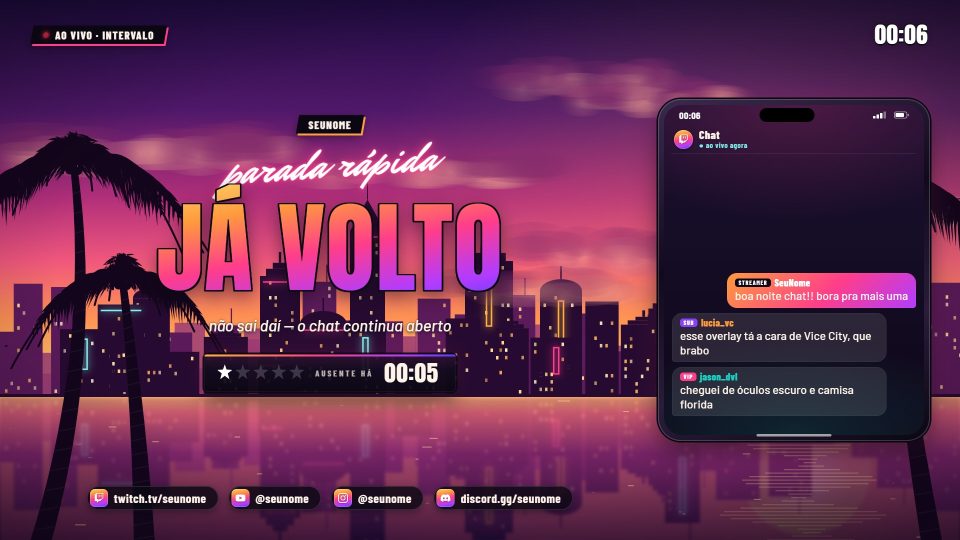
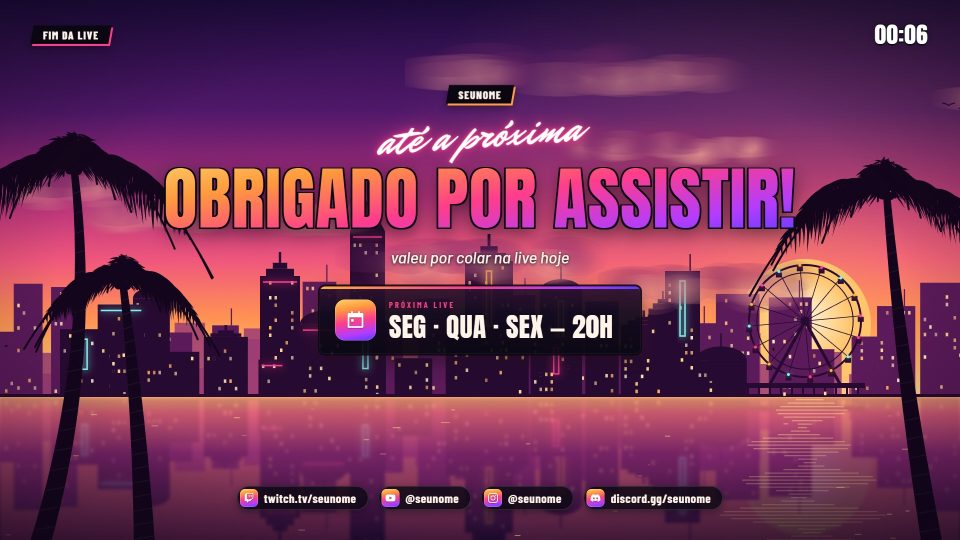
Vice
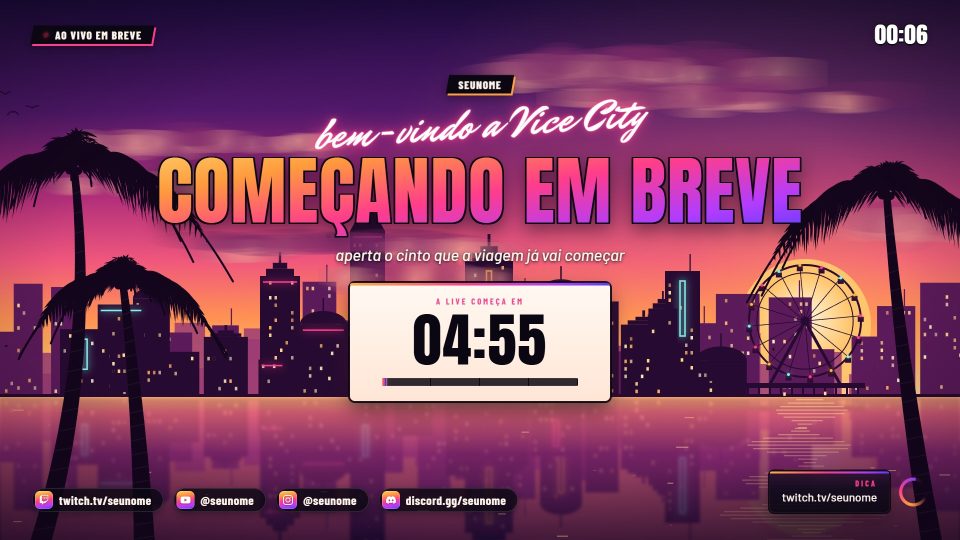
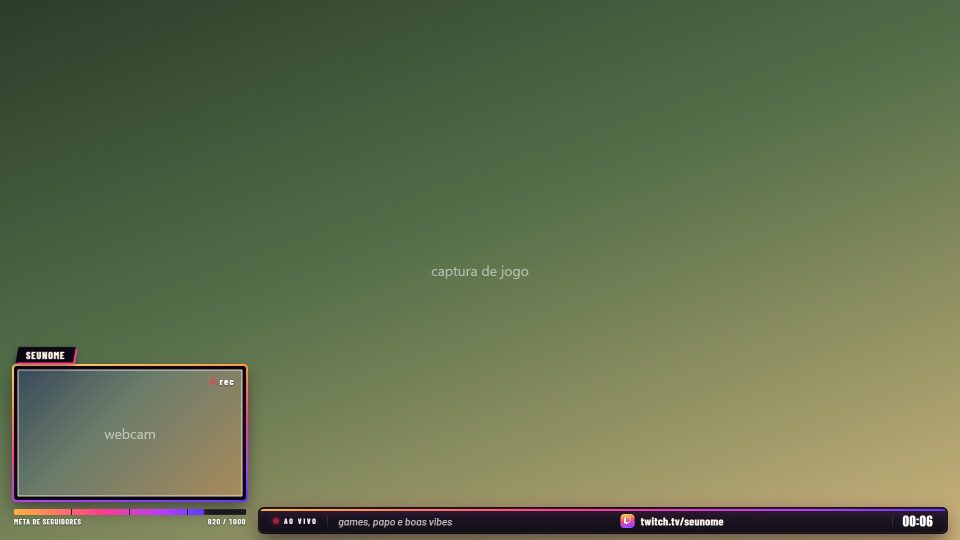
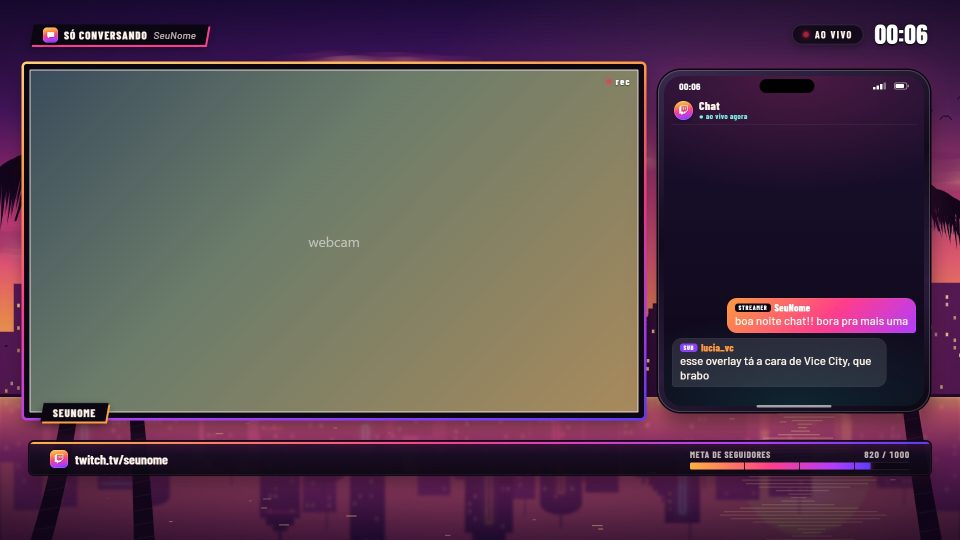
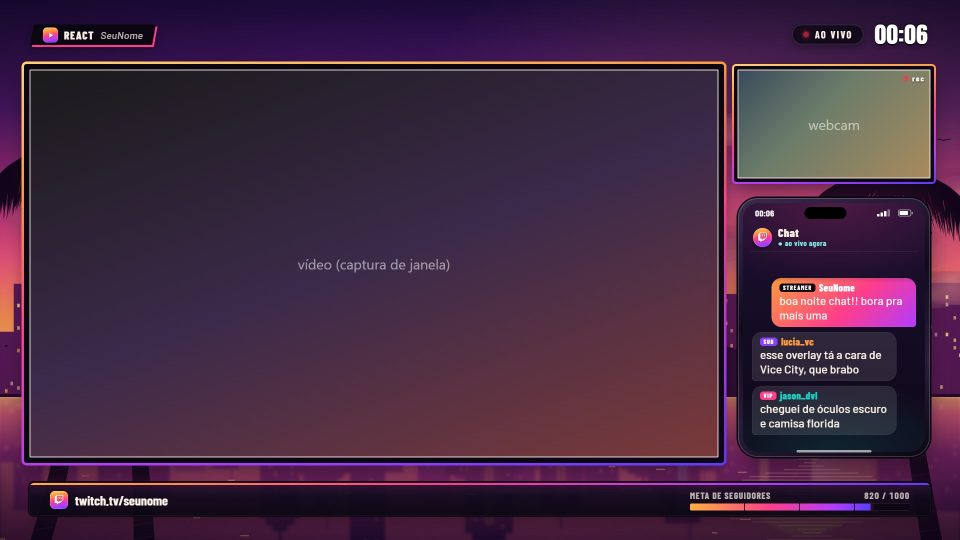
Sunset in Vice City: an art deco waterfront with neon, a Ferris wheel on the pier and swaying palm trees.
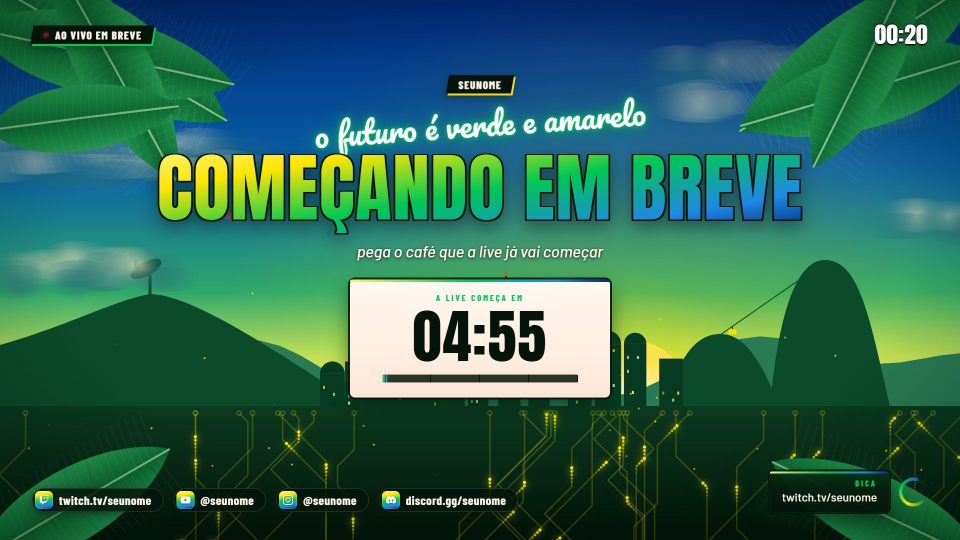
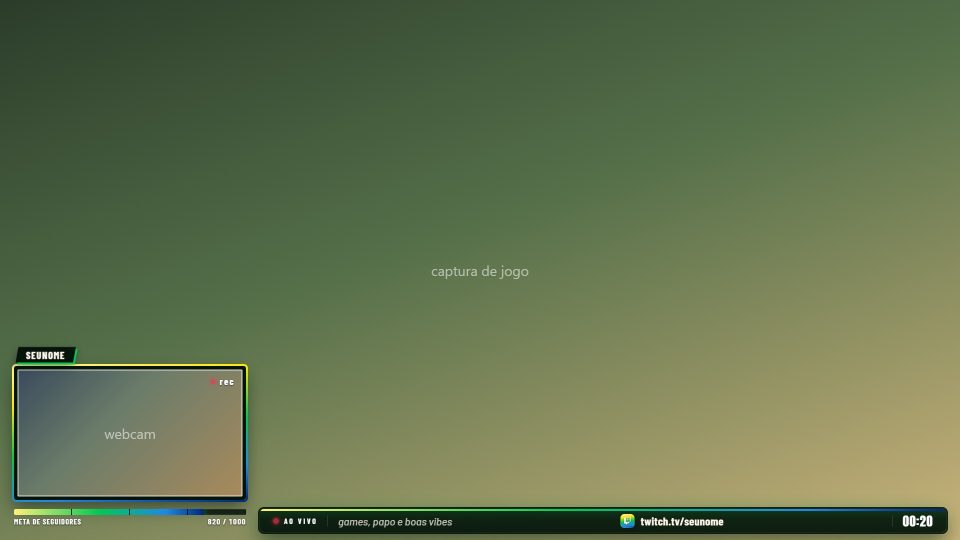
Banana
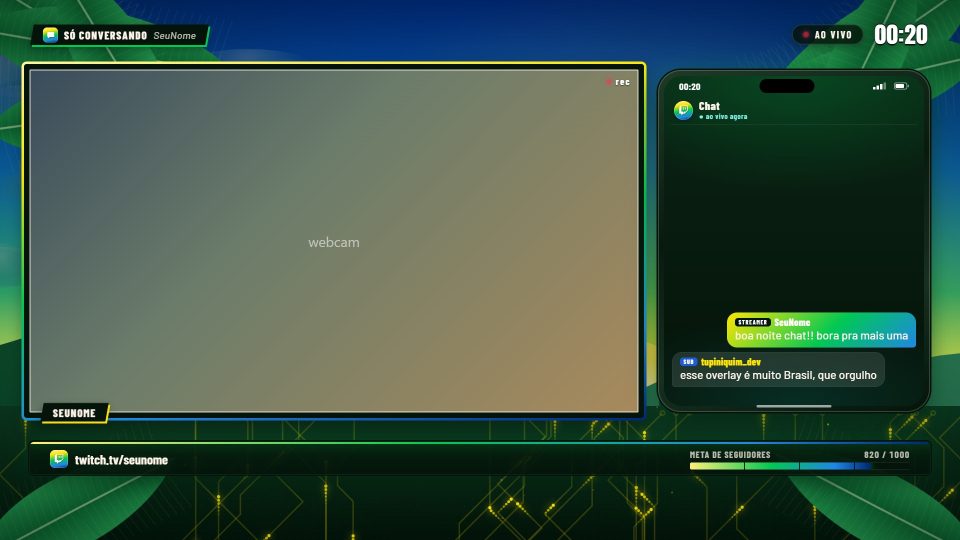
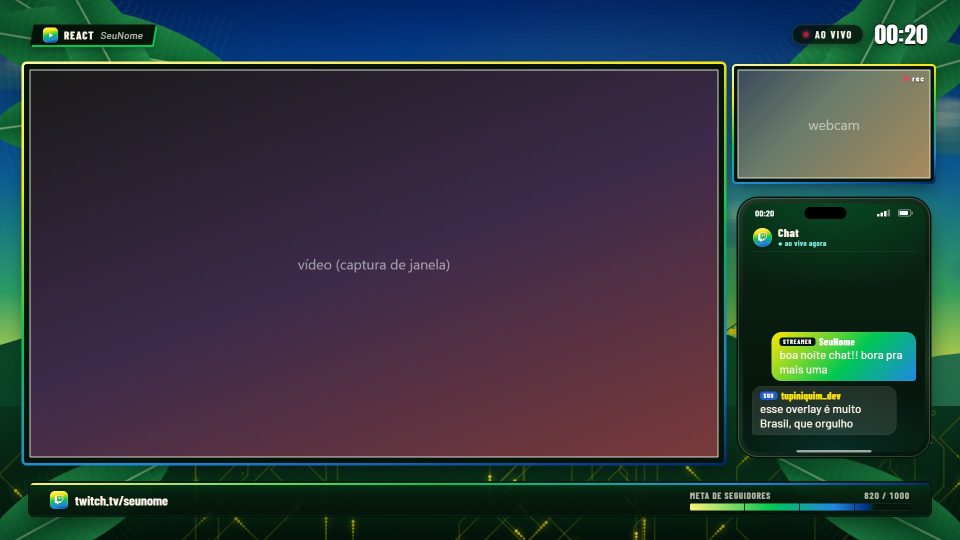
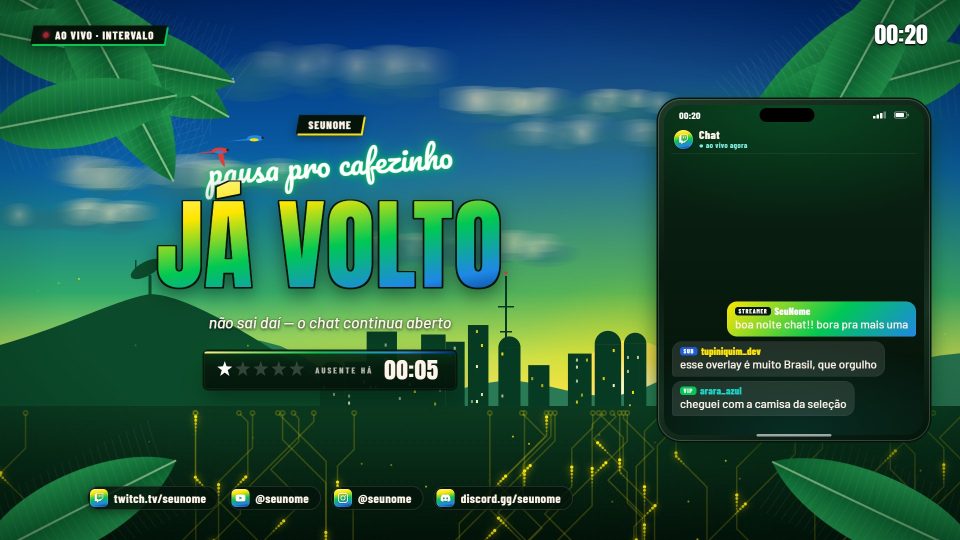
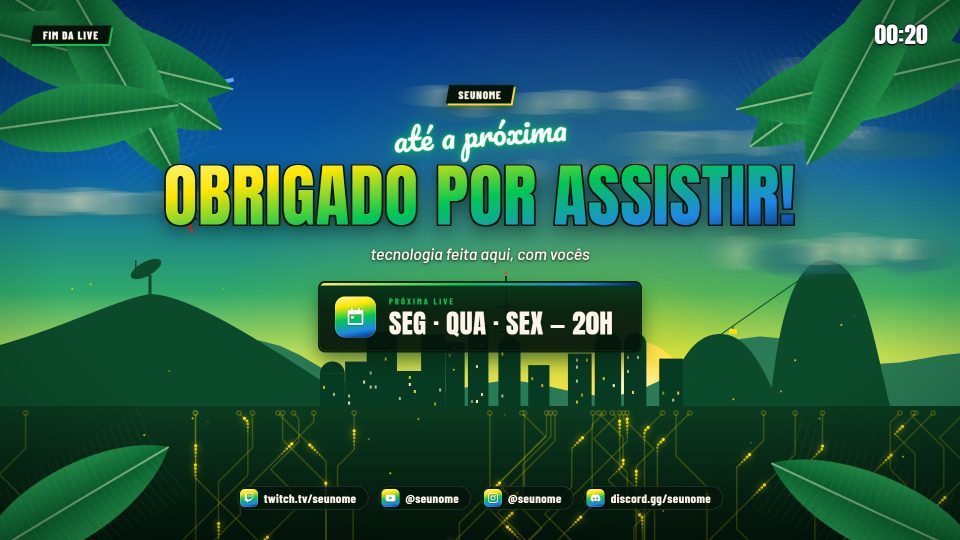
The future is green and yellow: Sugarloaf Mountain with its cable car, a connected city and banana leaves swaying.
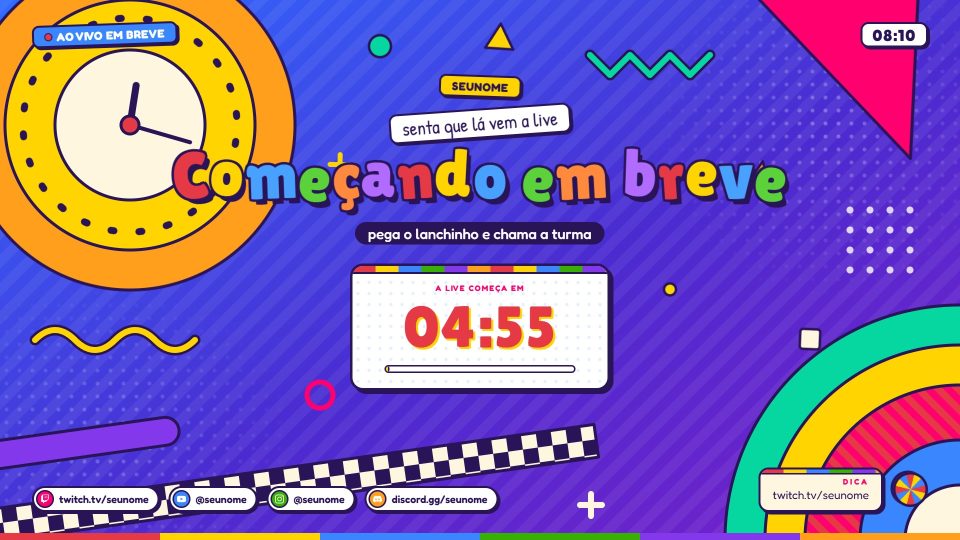
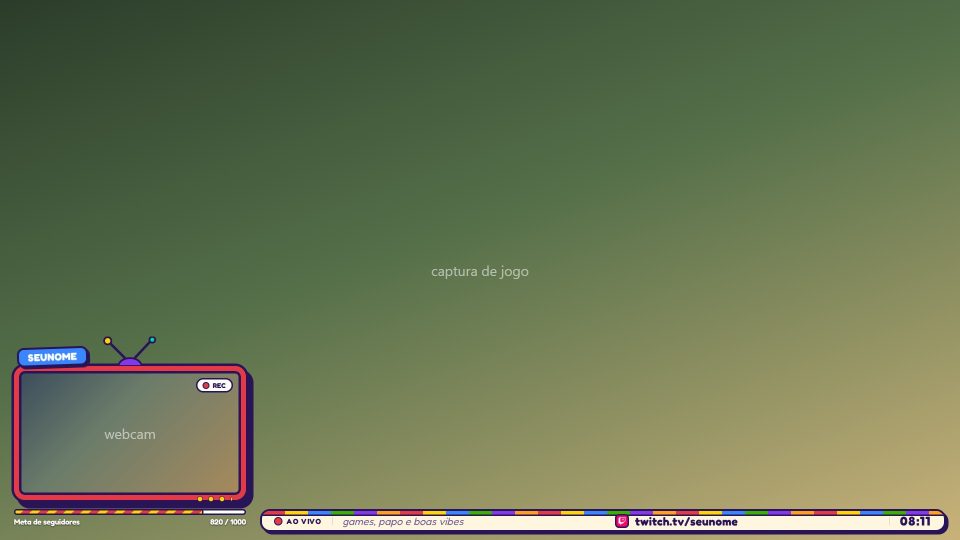
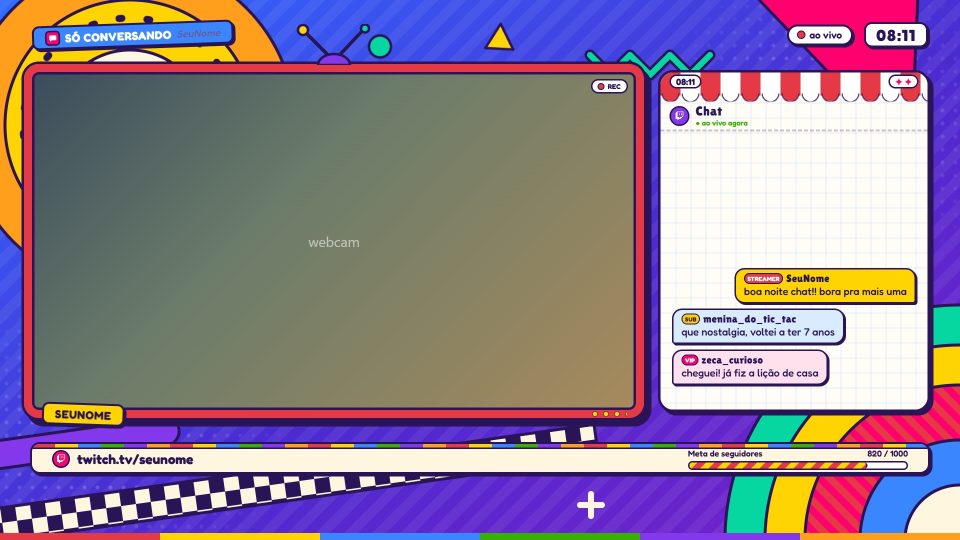
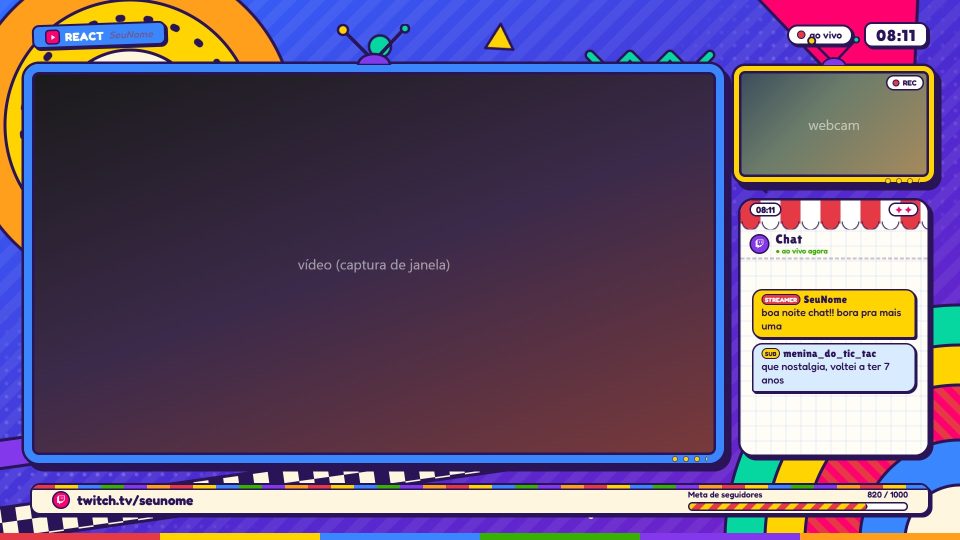
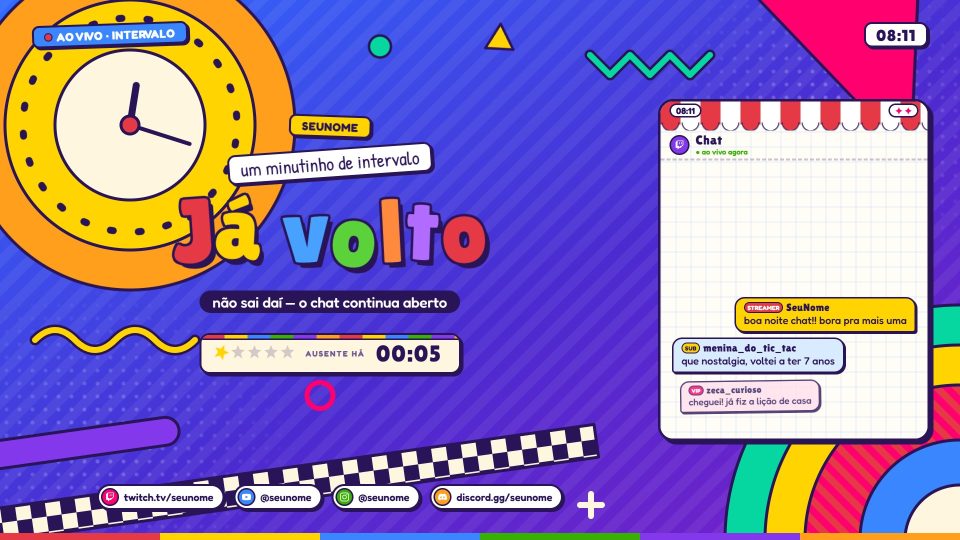

Ratimbum
90s educational TV: cut-out paper, colorful letters, a geometric bumper and your webcam inside a CRT TV.